Why did it take VLC 12 years to add a “Previous Frame” feature?
In VLC, pressing E steps forward one frame, but there is no shortcut to go back one frame. Thousands of people have searched for “VLC previous frame” for over a decade.
The first documented request goes back to December 29, 2013, when vadiav opened ticket #10252:
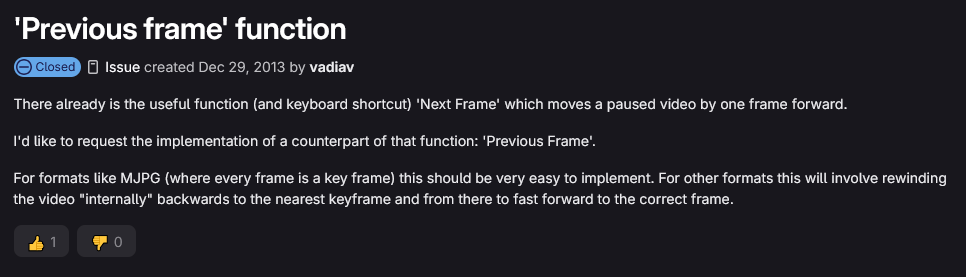
That same day, VideoLAN’s lead maintainer Jean-Baptiste Kempf tagged the ticket Difficulty::guru and laid out the problem: VLC 3’s strictly one-way pipeline wasn’t frame-accurate across all formats, so rewiring it to step backward would mean major core changes and a tangle of edge cases:
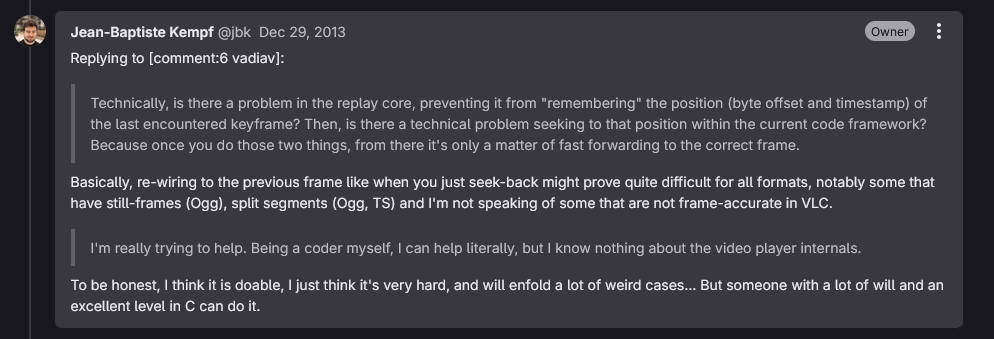
Ultimately, no one ever ended up building it for VLC 3, despite no shortage of people asking for it over the next decade. Almost ten years later, on January 18, 2023, VLC developer Rémi Denis-Courmont answered yet another request:
“No way in hell such a difficult feature can be done in 4.0 and/or before buffering redesign (5.0.0). I thought people would know stop scope creep by no[w].”
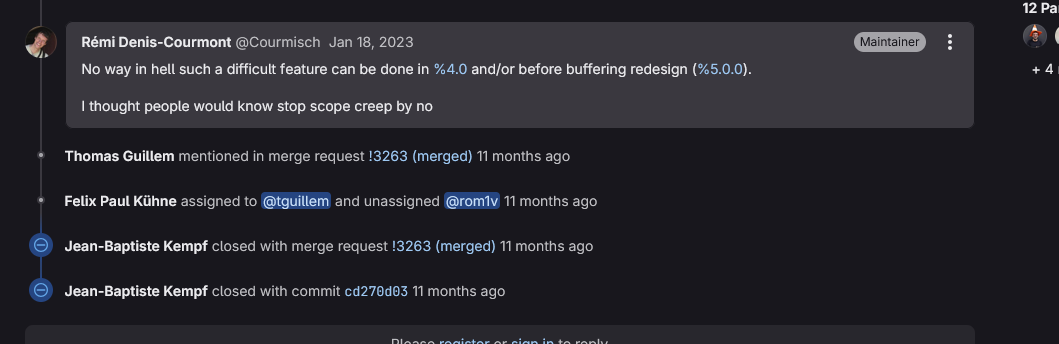
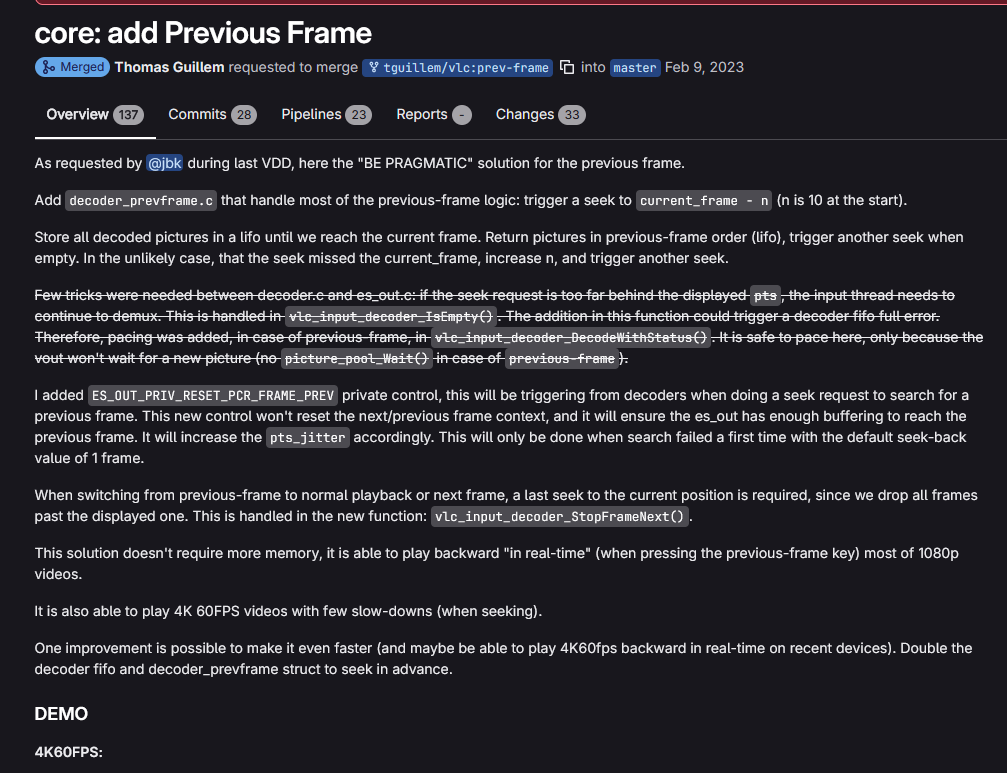
The feature did arrive in the end, through Thomas Guillem’s merge request !3263 for the still unreleased VLC 4.0. It took 28 commits, 33 changed files (+1,749 lines), and 137 comments:
Why would a single “step back” button be treated as scope creep, and take twelve years to land?
Which video players can step backward one frame?
VLC isn’t the only player that struggles with this. Most desktop players can step forward one frame, far fewer can step backward, and the ones that can are often slow at it.
| Player | Forward | Backward | Notes |
|---|---|---|---|
| VLC 3 (stable) | E |
No | Workaround: jump back 3 s (Shift+Left), tap E |
| VLC 4 | E |
Yes | Unreleased (merged in MR !3263) |
| Windows 11 Media Player / Movies & TV | No | No | Jumps by seconds only |
| ffplay (FFmpeg) | s |
No | Forward frame-step only |
Browsers (<video>) & YouTube |
Faked (.) |
Faked (,) |
No HTML5 frame-step API; guesses 1 / fps |
| mpv / IINA | . |
, |
Always performs a seek; can be slow |
| QuickTime, MPC-HC, PotPlayer | Yes | Yes | QuickTime stutters on heavy files; others Windows-only |
| Video Preview Enhanced (VS Code) | . |
, |
Instant via two-way RAM cache (free, MIT) |
Why can’t a video player just show the previous frame?
In most video files, there is no standalone “previous frame” stored on disk. Most videos store only occasional full keyframes and save everything in between as changes, so stepping backward requires jumping to an earlier keyframe and re-decoding forward.
Storing every pixel of every frame (uncompressed) would make a two-hour 1080p movie roughly 670 GB. Compressing each frame on its own - like ProRes or MJPEG - still lands around 50–150 GB: fine for editing suites, far too big for YouTube, Netflix, or your phone.
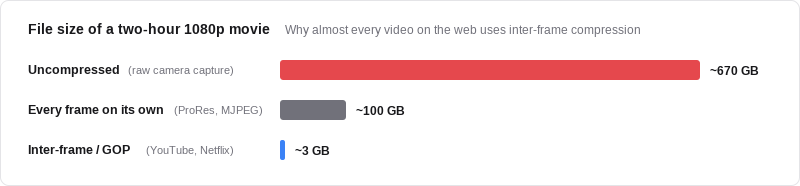
So almost everything on the web uses inter-frame compression. The file stores one full picture, called a keyframe, every few seconds - maybe 250 KB on its own. In between, it stores only predicted frames containing the changes (“deltas”) from the previous frame, often just 10–15 KB each. The stretch from one keyframe to the next is called a GOP (Group of Pictures).
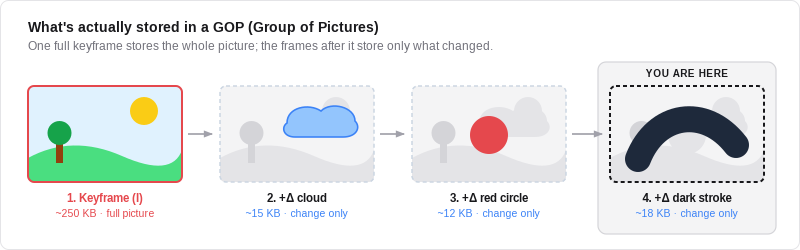
Think of a GOP as a set of painting instructions: start from the original painting, then paint a cloud over the sun, then paint a red circle, then paint a dark brushstroke across the middle. Once a brushstroke covers earlier pixels, you can’t undo it. The delta only tells you what to paint on top, not what was underneath. To see step 3 again, you have to go back to the original painting and repaint steps 1 to 3.
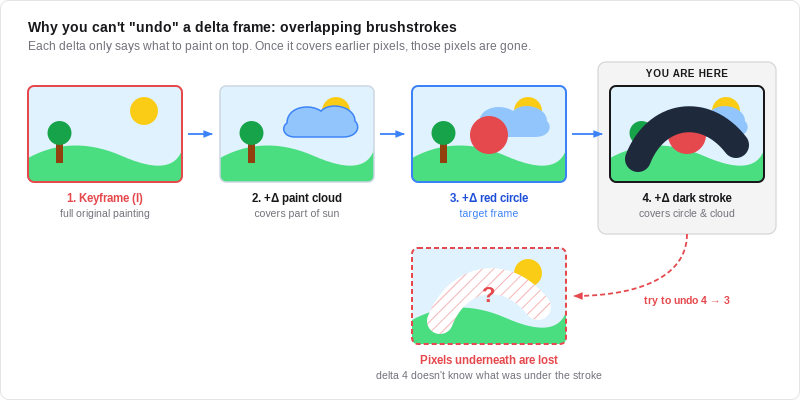
This is why Rémi called it difficult. A classic player runs one way - read, decode, display, discard - so going backward means jumping back to the last keyframe and decoding forward again.
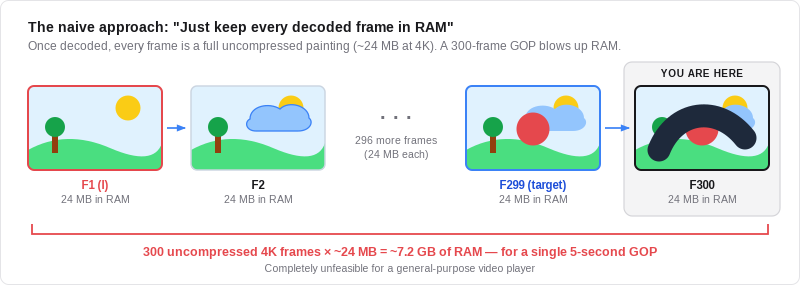
“Okay,” you might think, “why not just keep the last decoded frames in memory?” The catch is size. In real web video, a single GOP can be 60 to 300 frames long. At 4K, each uncompressed frame takes 12–25 MB, so keeping a whole GOP in memory can easily eat gigabytes of RAM. You need a cleverer solution.
How VLC 4 finally added previous-frame stepping
VLC 4’s merge request !3263 doesn’t wait for the buffering redesign planned for VLC 5.0. Instead it seeks backward in small batches and decodes forward into a temporary reverse stack.
Thomas Guillem called the approach "BE PRAGMATIC", and it works like this. When you press Previous Frame, VLC seeks back n frames, starting with 10. It then decodes forward to the frame you were on and pushes each decoded frame onto a last-in, first-out stack. Each press of Previous Frame takes the top frame off the stack and shows it. Because the stack is filled in order, the frames come off in reverse.
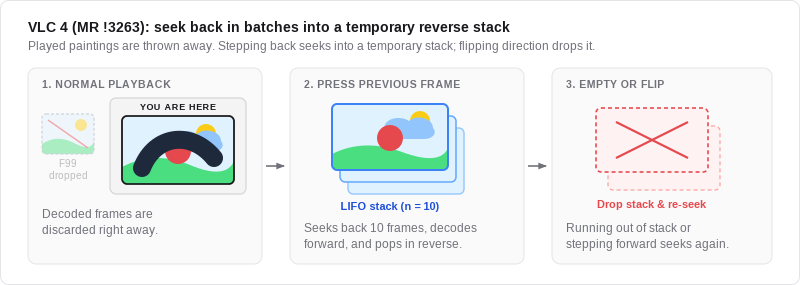
That solves the problem people had been reporting since 2013, and it’s a real step forward. It’s also clearly a workaround, and it leaves four gaps:
- It ignores frames VLC has already decoded. During playback or forward stepping, the decoder has just produced the frames you want to go back to, and they get thrown away. The stack starts filling only after you press Previous Frame.
- Every time the stack runs out, VLC seeks back again. On heavy 4K60 video, each of those seeks is a noticeable pause.
- Changing direction costs another seek. If you go from Previous Frame back to Next Frame or Play, VLC drops everything after the current picture and seeks again.
- Even this smaller approach touched 33 files. Most of that work was needed to keep VLC’s forward-only decoder queue from overflowing or deadlocking.
How to make backward frame stepping instant
If you’re designing a player’s buffering for both directions from the start, closing those gaps comes down to two core techniques.
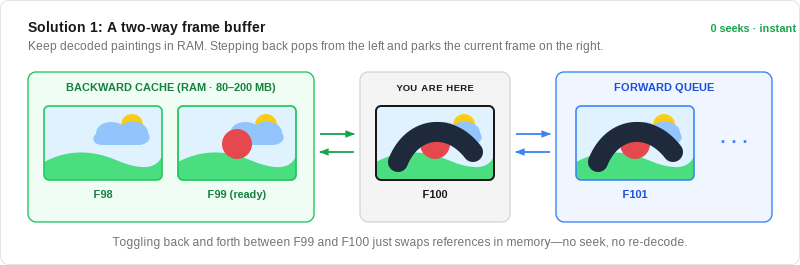
1. A two-way frame buffer that reuses decoded frames. Every seek or forward step already makes the decoder produce frames along the way. Instead of throwing them away, keep them in a bounded backward cache in memory, say 80–200 MB depending on the machine. When you step backward, put the frame you just left back into the forward queue. Toggling between two frames is exactly what you do when inspecting footage, and with this buffer it’s instant and never triggers a seek.
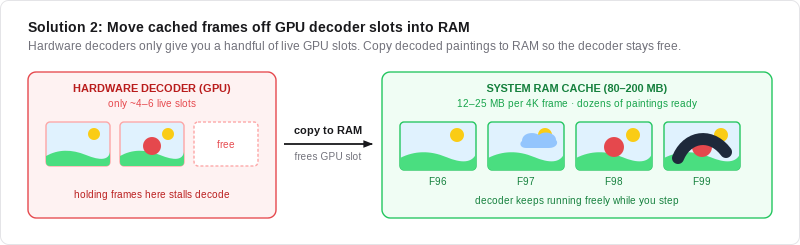
2. Move cached frames off the GPU into RAM. An uncompressed 4K frame takes about 12–25 MB, and hardware decoders give you only a handful of live GPU slots before they stall. If you copy cached frames out of those slots into ordinary system memory, the decoder can keep working while you step through the cache. It also helps to coalesce rapid scroll or key bursts, so that ten quick notches on 4K video become one seek instead of ten.
This two-way buffer is how I implemented backward stepping in Video Preview Enhanced, an open-source (MIT) video player for VS Code.
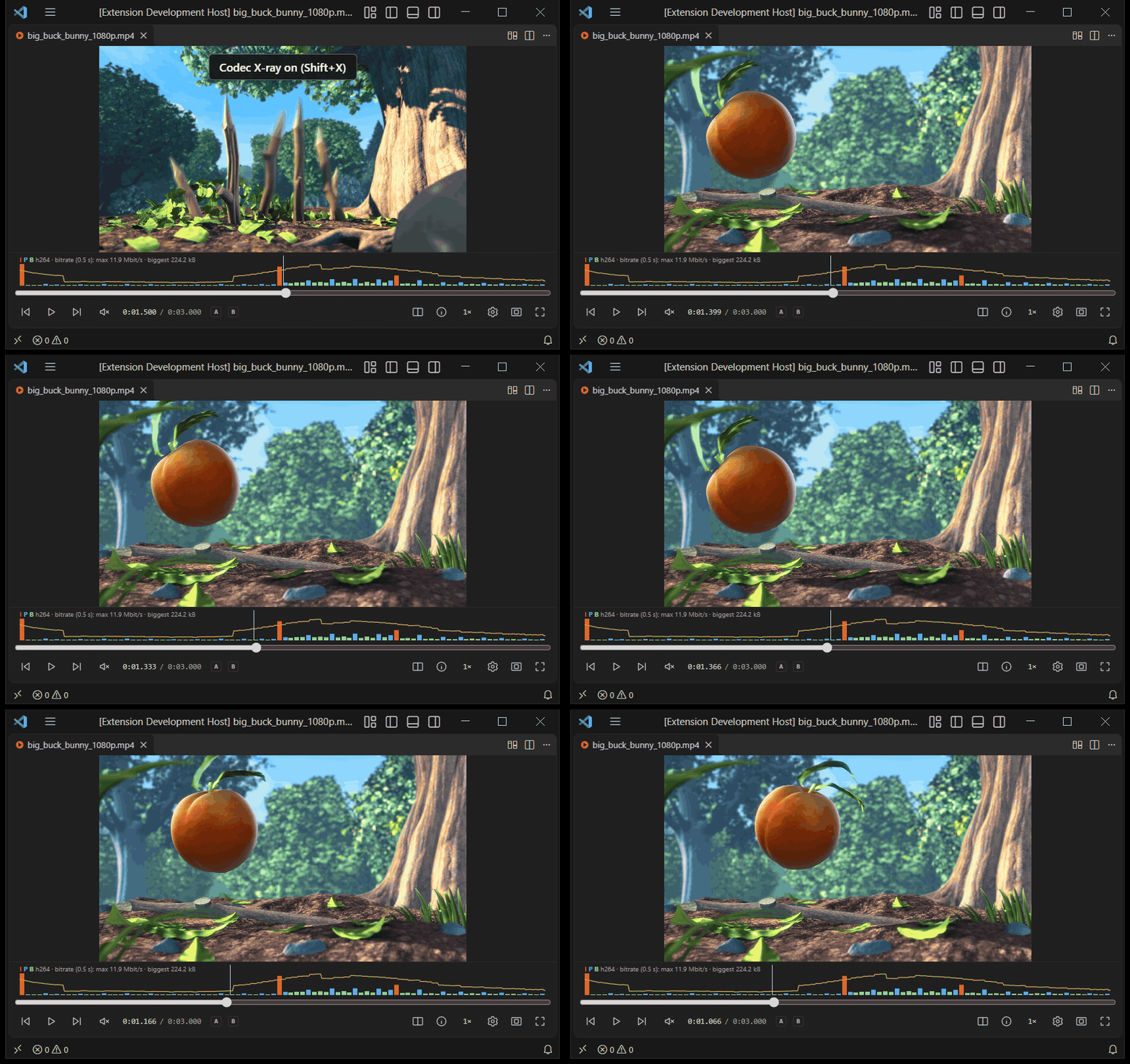
Alongside instant forward and backward frame stepping, it includes:
- Remote-SSH and WSL streaming: play videos on remote machines with no download first, with optional on-host transcoding for heavy 4K footage.
- Synchronized comparison (up to 16 videos): side-by-side, split, or grid views with synced playback, frame stepping, zoom/pan, and per-video frame offsets.
- Pro inspection tools: Codec X-ray (I/P/B frames and bitrate), waveform/RGB parade/vectorscope/histogram scopes, and a pixel inspector.
- Every major format with sound: MP4, MKV, MOV, AVI, WebM, WMV, MXF, HEVC, AV1, and ProRes, with seek-bar thumbnail previews and no admin rights required.
Install it from the VS Code Marketplace or browse the source on GitHub at github.com/gordon-vidal/video-preview-enhanced.